Prerequisites
Before you can configure and use JDBC with Embedded Cloud, you must first connect a data source to your account. See Sources for more information.Install the Driver
Download and run the JDBC setup file for your operating system.Create a JDBC Data Source
Follow these steps to create a JDBC data source to connect to Embedded Cloud from your Java application:1
Add the driver JAR file to the classpath. The JAR file is located in the
lib subfolder of the JDBC driver for Connect AI installation directory.Note: The .lic file must be located in the same folder as the JAR file.
2
Some applications automatically populate the driver class. For applications that do not automatically populate it, you must enter it manually. For example:
3
Provide the JDBC URL. For example:orThe second format above can be used to ensure you are using the CData driver whenever there is a conflict in your application between drivers using the same URL format. The URL must start with either
jdbc:connect: or jdbc:cdata:connect:, and it must only include the AuthScheme setting as OAuth.Designate a Log File
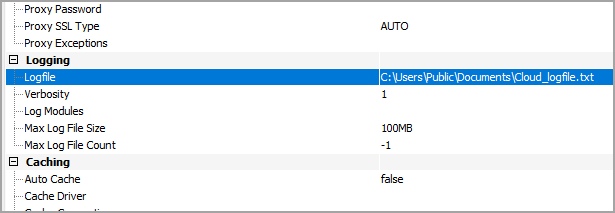
You can designate a log file for the JDBC driver in the Advanced tab of Connection Properties. You can also change the verbosity of the log file for greater detail.